Step by step: connect pronubes Edge to Microsoft Fabric via Kafka
From the machine value to the Eventhouse table, without a broker of your own.
This guide shows how to create a Kafka-compatible endpoint in Microsoft Fabric, how pronubes Edge sends machine data to it as JSON messages and how the data lands in an Eventhouse table. The example uses a simulated filling machine whose values are read via OPC UA.
- A running pronubes Edge instance with access to the machine data, OPC UA in this example
- The Kafka plugin in pronubes Edge
- A Microsoft Fabric account with an active Fabric capacity or trial and permission to create Eventstreams and Eventhouses
- Network connectivity from pronubes Edge to the Fabric Kafka endpoint
Configure Microsoft Fabric
First, you create the workspace, the Eventhouse and the Eventstream with its Kafka endpoint in Fabric. You need the connection details from it in pronubes Edge afterwards.
Create a Fabric account and workspace
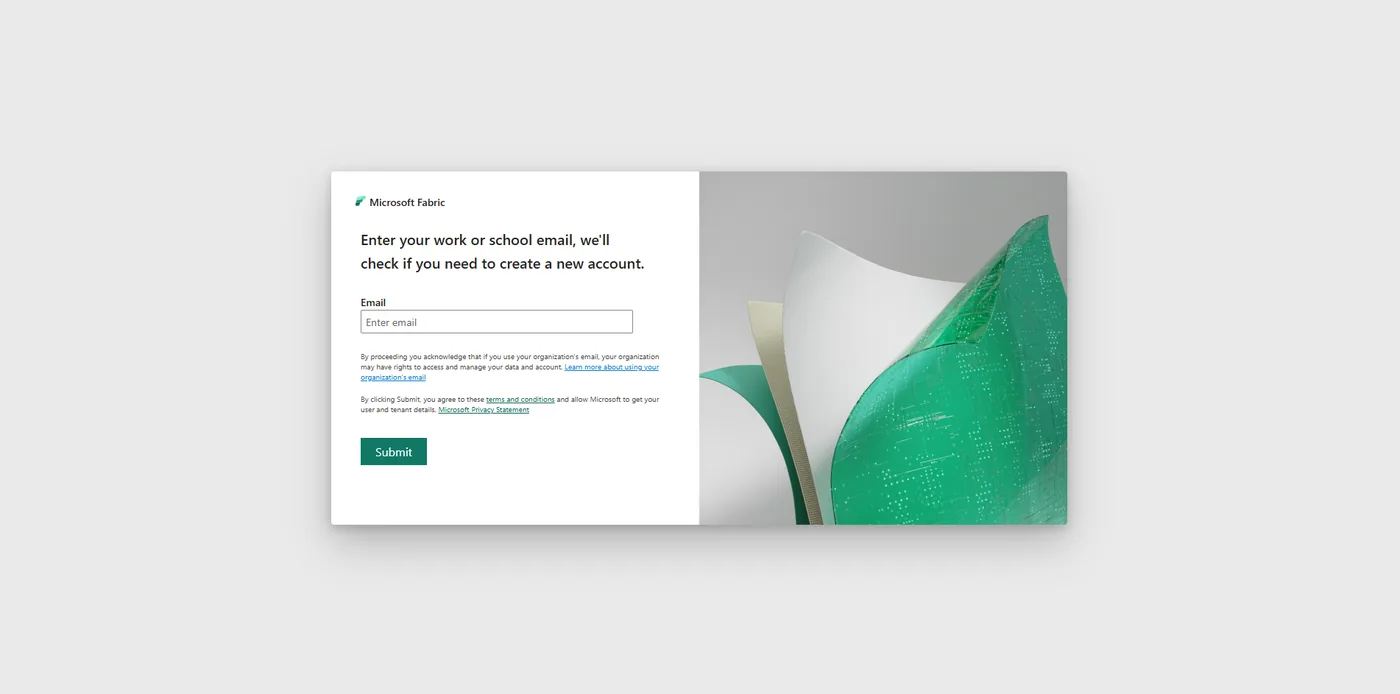
- Open app.fabric.microsoft.com.
- Sign in with a Microsoft work or school account. If you do not have one, follow Microsoft’s account onboarding process.
- If eligible, activate a Fabric trial from the profile menu, or use an existing Fabric capacity.
- Select Workspaces → New workspace.
- Enter a name, for example
PlantDataWorkspace. - Assign the workspace to the trial or your capacity and create it.
Good to know: The workspace is where you create and manage Eventstreams, Eventhouses and other Fabric items.
Create an Eventhouse
- Open the workspace.
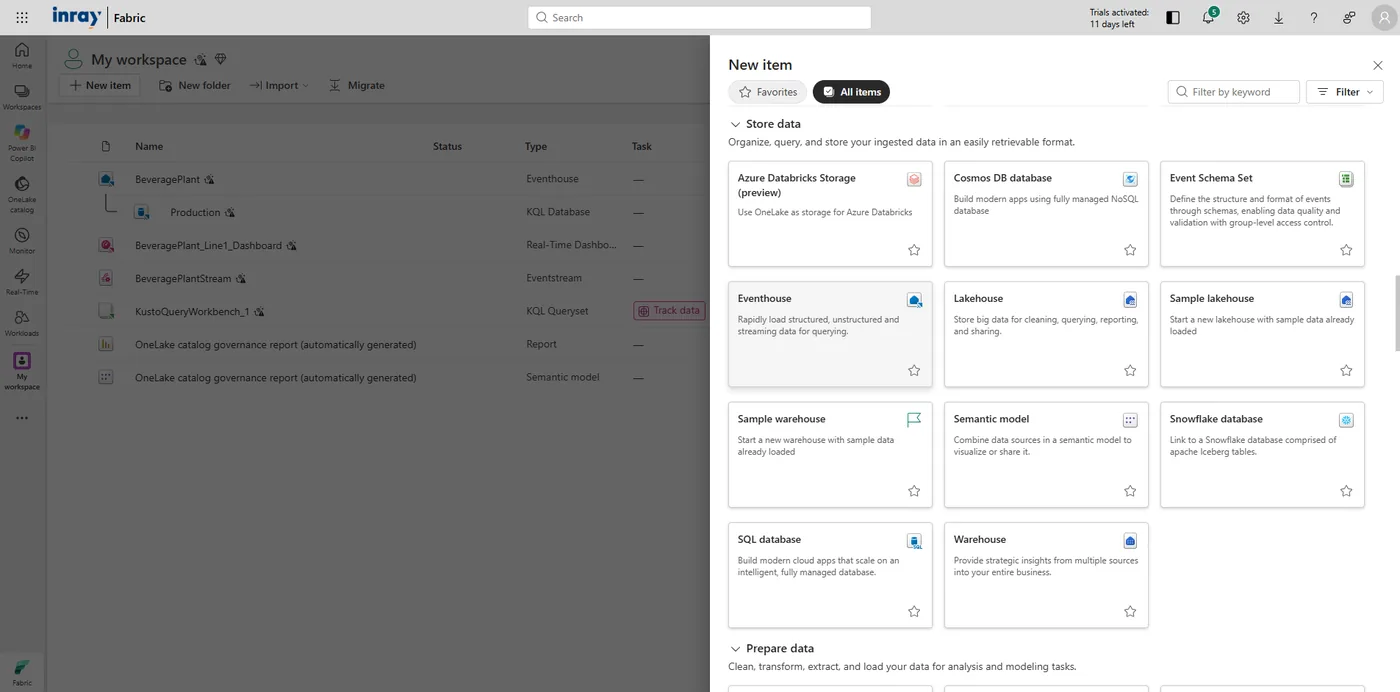
- Select New item → Eventhouse.
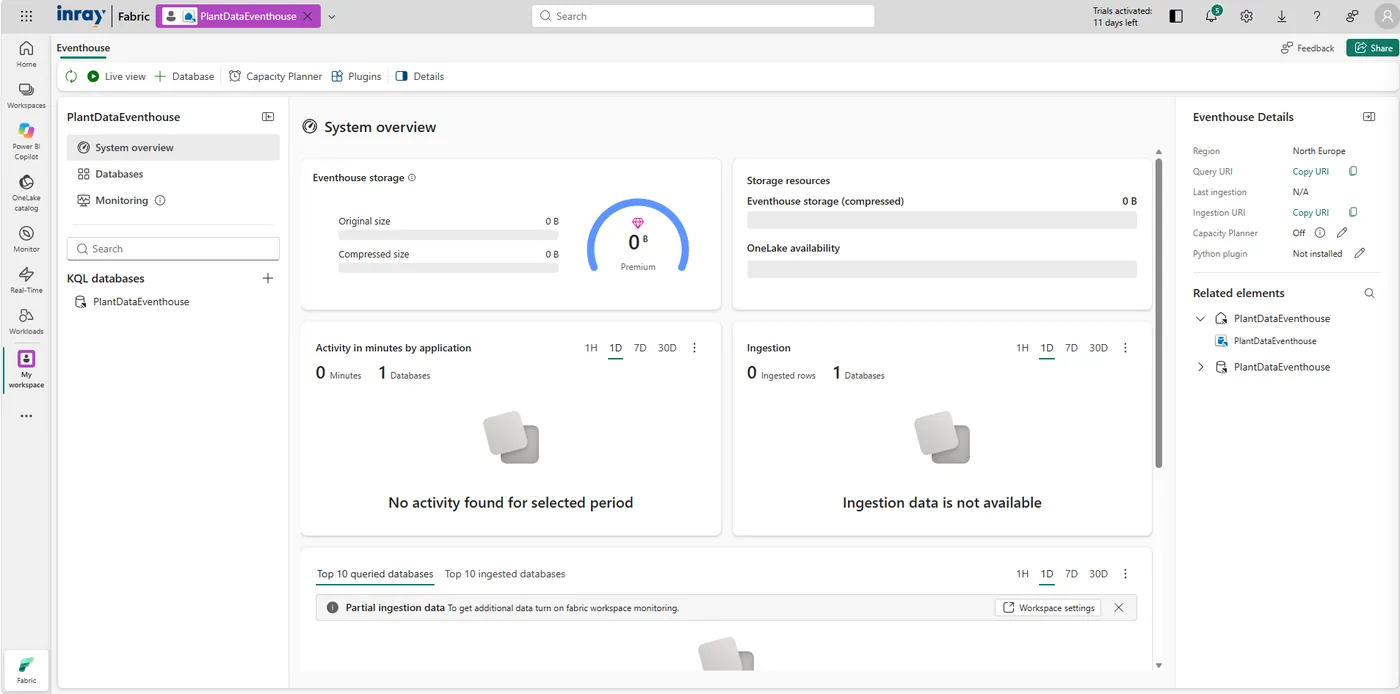
- Enter a name, for example
PlantDataEventhouse. - Select Create.
Fabric automatically creates a KQL database inside the Eventhouse. It will hold the table for the machine data.
Create an Eventstream
- Return to the workspace.
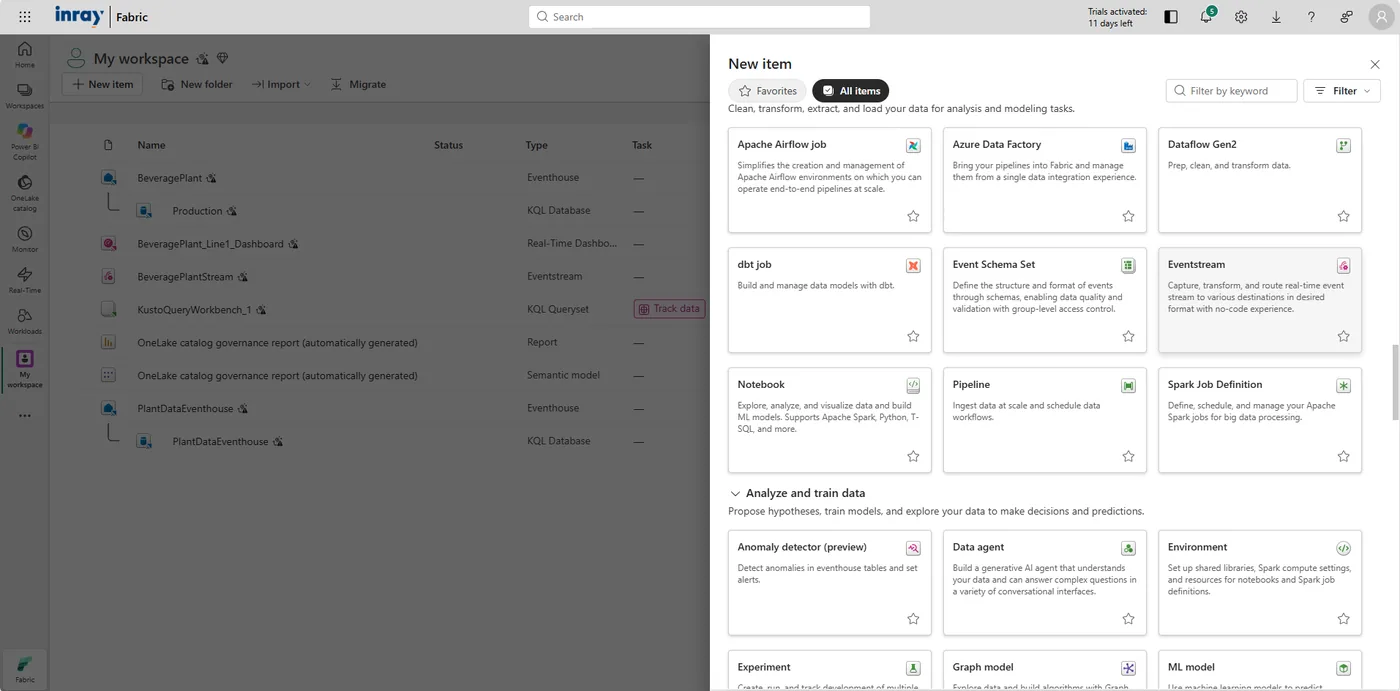
- Select New item → Eventstream.
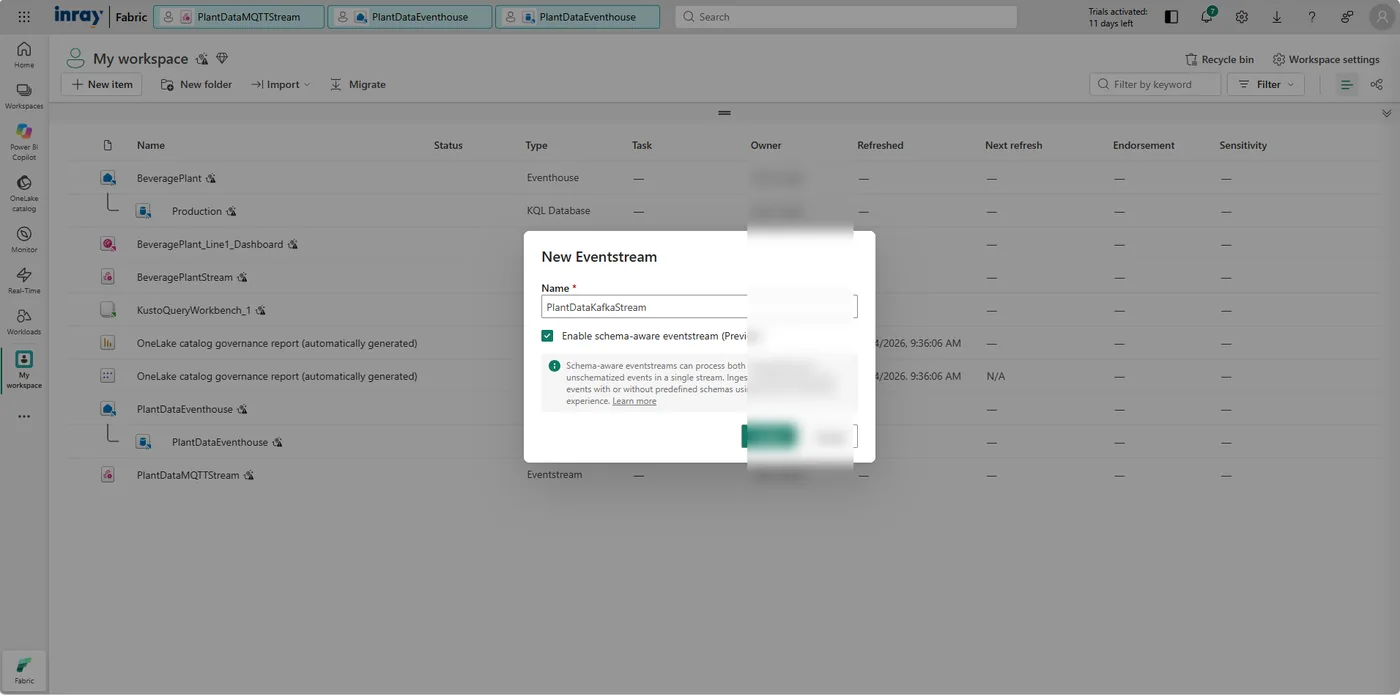
- Enter a name, for example
PlantDataKafkaStream. - Select Create.
An Eventstream receives incoming events and routes them to a configured destination.
Add a custom endpoint source
- Open the Eventstream editor.
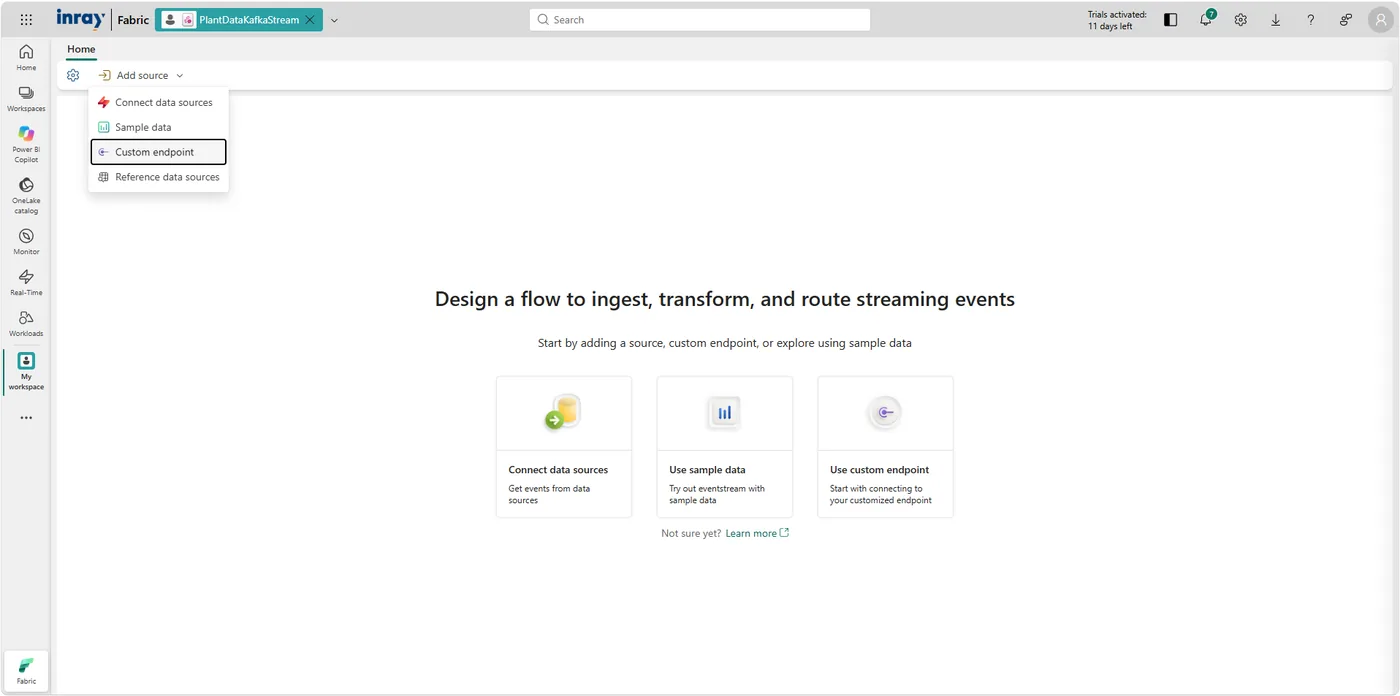
- Select Add source → Custom endpoint, or Use custom endpoint if the Eventstream is empty.
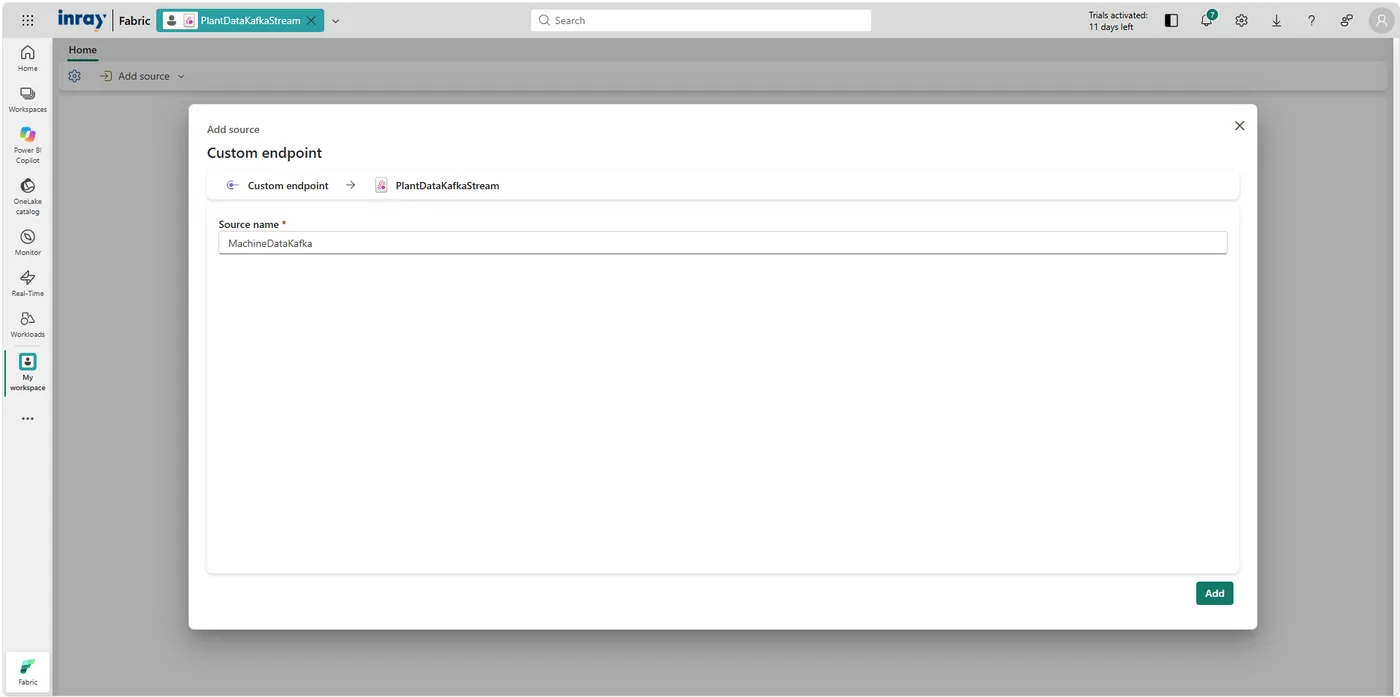
- Enter a source name, for example
MachineDataKafka. - Select Add.
- Select Publish to apply the changes.
- Wait a few minutes until Fabric has created the Kafka endpoint.
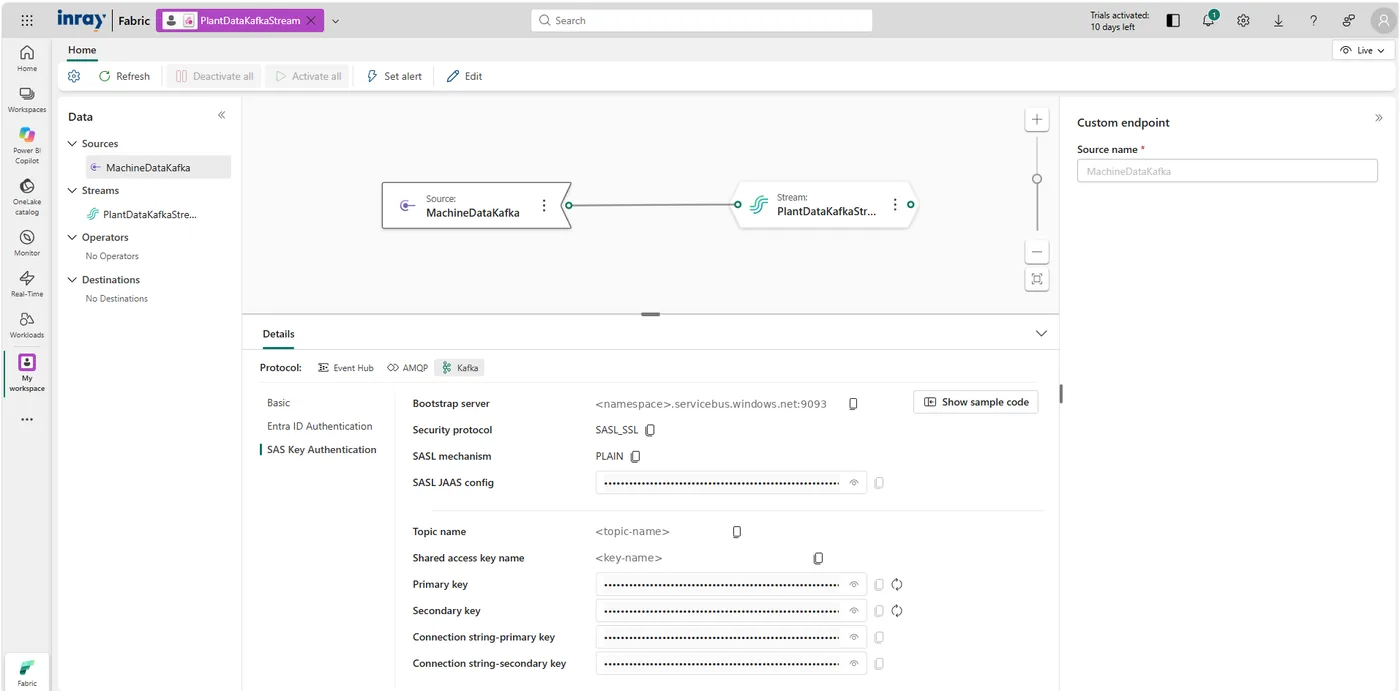
- Switch to Live view and select the custom endpoint source.
- Open the Kafka tab in the Details pane.
- Select SAS Key Authentication.
Fabric now shows the Kafka connection details. Copy these values:
| Setting | Description |
|---|---|
| Bootstrap server | Kafka-compatible server address provided by Fabric |
| Topic name | Topic name assigned automatically by Fabric |
| Connection string-primary key | Connection string used for authentication |
| Security protocol | SASL_SSL |
| SASL mechanism | PLAIN |
Important: Fabric generates the topic name automatically. Use exactly the value shown, not a name of your own such as ProcessValues. Treat the connection string like a password.
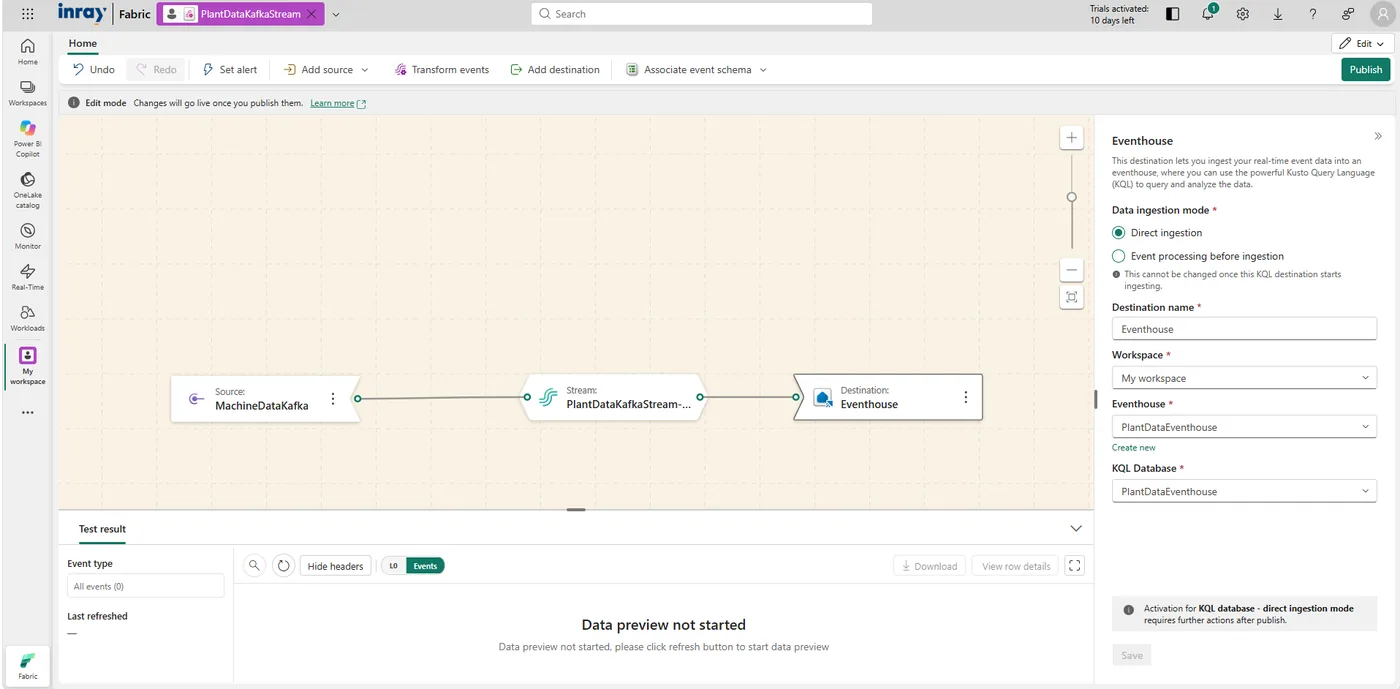
Configure the Eventhouse destination
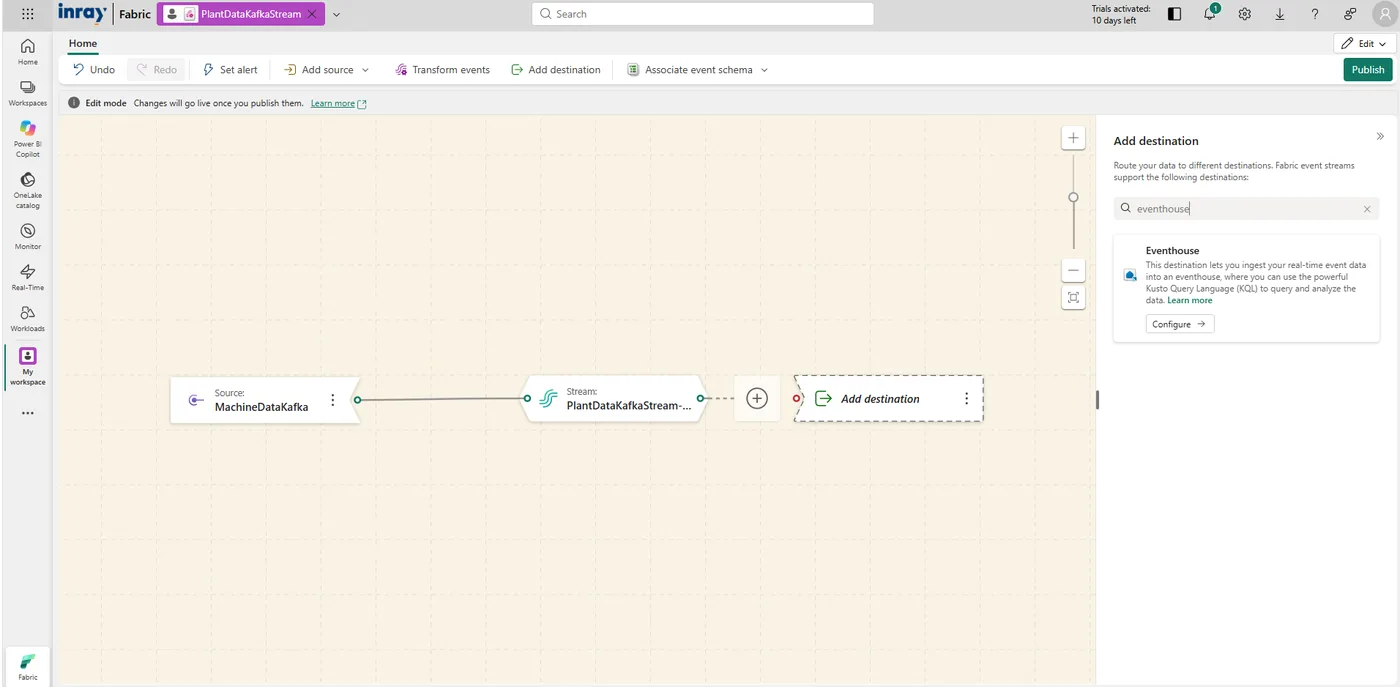
- Open the Eventstream in Edit mode.
- Select Add destination → Eventhouse.
- Choose Direct ingestion for this example.
- Select the workspace and the previously created
PlantDataEventhouse. - Save the destination, make sure it is connected to the Eventstream, and select Publish.
- Switch to Live view and select Configure on the Eventhouse destination.
- In the wizard, select the KQL database and choose New table.
- Name the table
MachineData. - Inspect the incoming data, select the JSON format and verify the column mappings and data types.
- Select Finish to complete the setup.
The Eventstream is now ready to receive Kafka messages and store them in the Eventhouse table.
Configure pronubes Edge
In pronubes Edge you connect the data source, enter the Kafka connection details from Fabric and build the flow that sends the JSON message.
Configure the OPC UA plugin
- Open the pronubes Edge configuration.
- Add an OPC UA plugin and configure the server endpoint, authentication and security settings.
- Test the connection to the OPC UA server.
- Identify the machine values to send.
In the example, pronubes Edge reads State, ProducedCount, ScrapCount, Temperature and Pressure from a simulated filling machine.
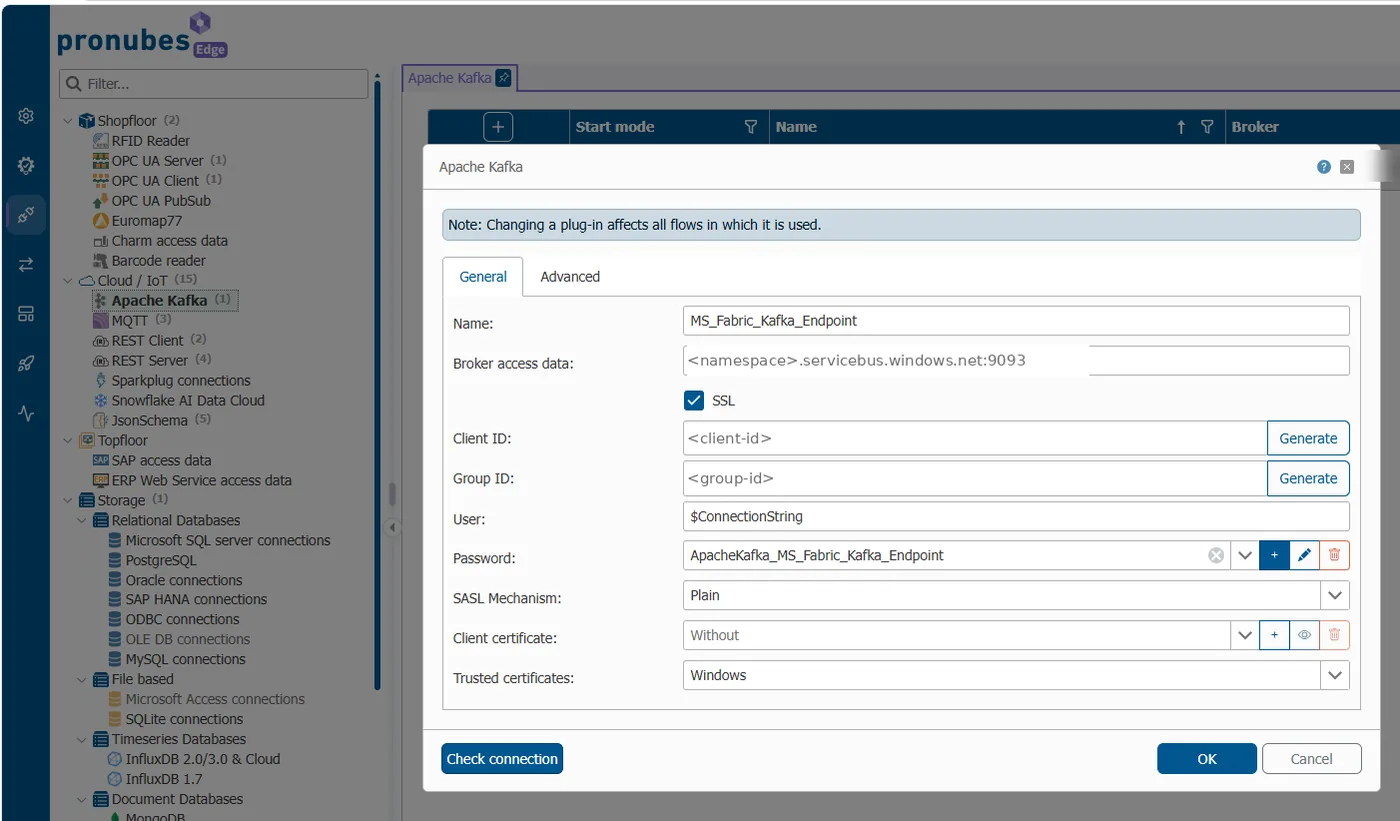
Configure the Kafka plugin
- Add the Apache Kafka plugin in pronubes Edge.
- Enter the bootstrap server from Fabric.
- Configure authentication and security (see table).
- Save the configuration and verify the connection to the Fabric Kafka endpoint with Check connection.
| Field in pronubes Edge | Value |
|---|---|
| Broker access data | Bootstrap server from Fabric, including port |
| SSL | enabled |
| User | $ConnectionString |
| Password | Connection string-primary key from Fabric |
| SASL Mechanism | Plain |
| Message format | JSON (UTF-8) |
Important: The username is literally $ConnectionString. As the password, enter the complete connection string from Fabric, not just the shared access key. Field names may differ slightly depending on the Kafka plugin version.
Create the flow
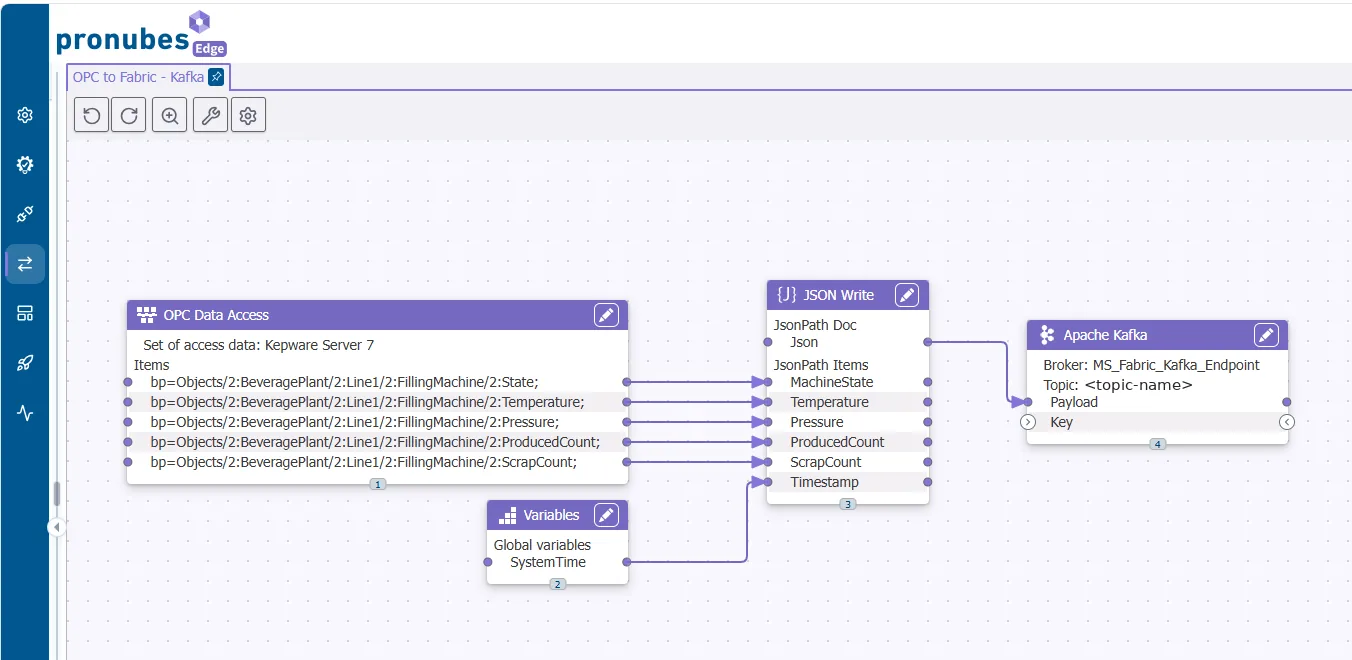
- Create a new flow in pronubes Edge.
- Add an OPC UA transfer object containing the required machine values.
- Add a Variables transfer object to provide the system time (
SystemTime). - Add a JSON Write transfer object to build a structured JSON message.
- Connect the OPC UA values and the system time to the corresponding JSON fields.
- Add the Apache Kafka transfer object and enter the topic name from Fabric as the topic.
- Connect the JSON output to the Payload input.
- Set the flow live with Go Productive.
The JSON message contains MachineID, MachineState, ProducedCount, ScrapCount, Temperature, Pressure and Timestamp. It is identical to the message on the MQTT route; only the sending building block and its connection differ.
Verify the data transfer
Finally, you check that the data arrives along the whole route.
Check the data in pronubes Edge and Fabric
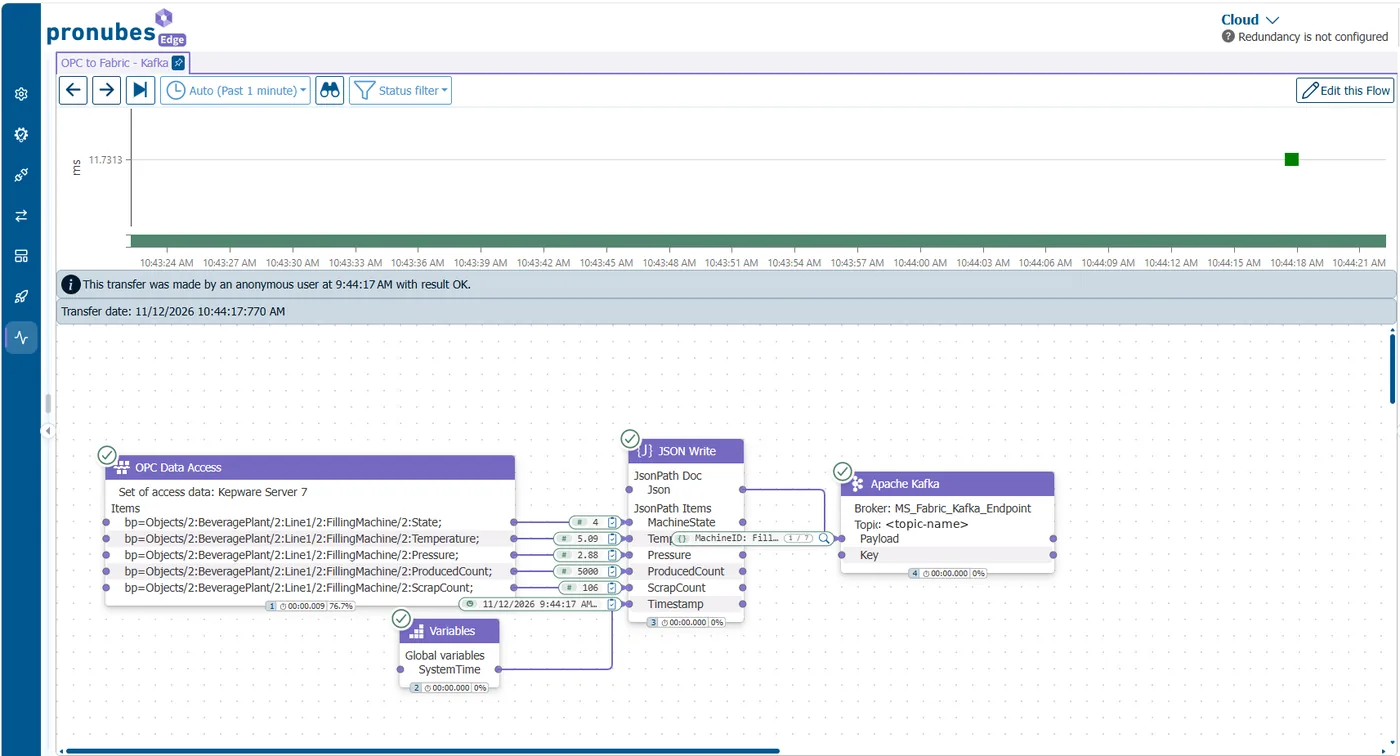
- Activate or run the flow in pronubes Edge.
- Check in pronubes Edge monitoring that messages are successfully sent to the Fabric Kafka endpoint.
- Open the Eventstream in Fabric and confirm that events appear in the data preview.
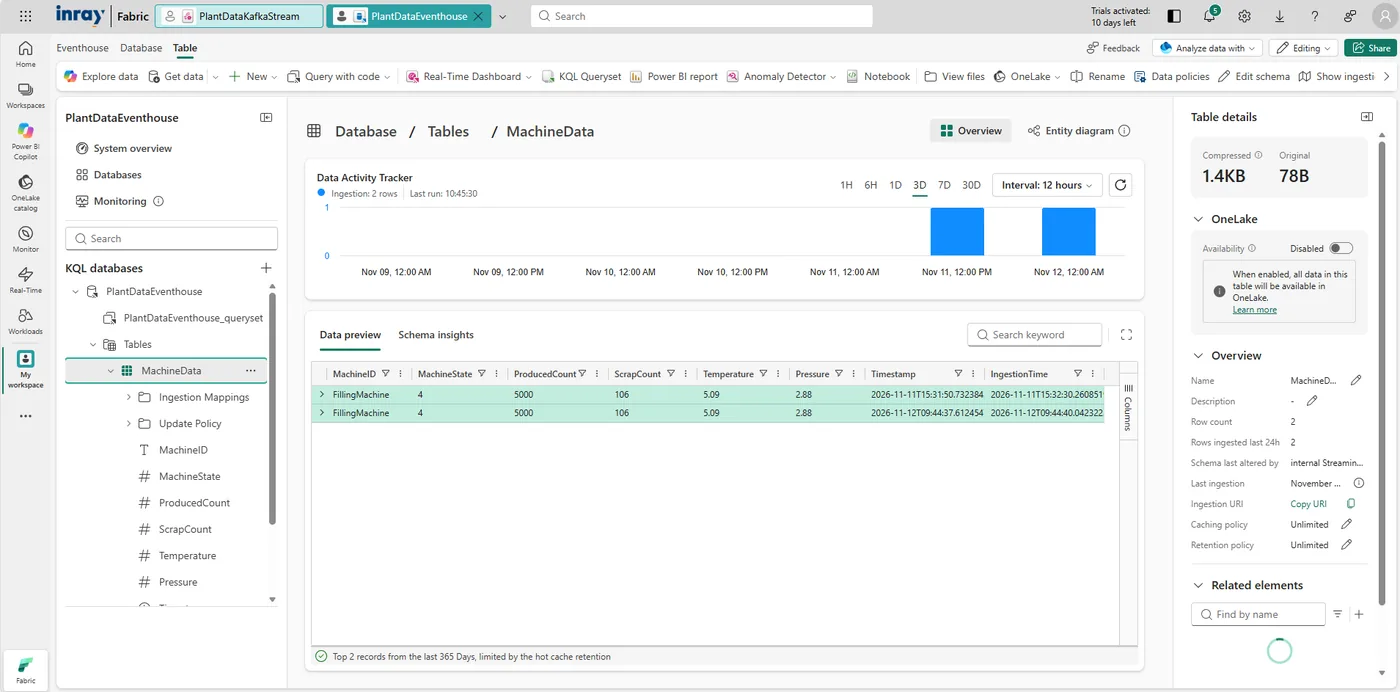
- Open the Eventhouse and select the
MachineDatatable.
If records appear with the expected machine values and timestamps, the integration is working.
Good to know
Notes and limitations
We help with the setup
You want to bring your machine data into Microsoft Fabric and have questions about your system landscape? Get in touch.
Common issues
pronubes Edge cannot connect to Fabric
Check the bootstrap server including port, SSL and the SASL mechanism Plain. The username is literally $ConnectionString, the password is the complete connection string, not just the key. pronubes Edge also needs an outbound TLS connection to the endpoint.
No data arrives in the Eventstream
Check that the flow is live. The Kafka building block must use exactly the topic name from Fabric, not a name of your own.
The Kafka connection details are not shown
Publish the Eventstream after adding the custom endpoint and wait a few minutes. The details appear in Live view on the Kafka tab under SAS Key Authentication.
The table stays empty although the Eventstream shows data
Check that the Eventhouse destination is connected and published and that you completed the wizard with “Finish”. With direct ingestion, this step is required after publishing.